01
Print from the product list
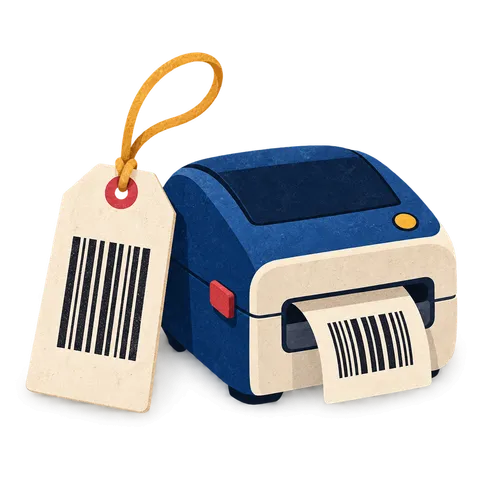
Pick products or a whole purchase delivery and print labels in one go. The quantity can match what you received so every piece gets a tag.
Feature 02 · Price tags and SKUs
A clear tag with the size, color, price and a barcode that scans keeps the queue moving. BoutiquePOS prints them from your catalog on the printer you already have or a cheap thermal one.
Barcode labels in BoutiquePOS print price tags and SKU labels straight from your product list. You choose a label template for sheet labels or a thermal roll printer, pick which details to show such as name, size, color and price, and print the quantity you received. Barcodes come in common formats including Code 128, EAN-13 and UPC-A.
Who needs it
On the shop floor
YOUR BRAND
Linen wrap dress
M · Indigo
00.00
Pick products or a whole purchase delivery and print labels in one go. The quantity can match what you received so every piece gets a tag.
Use A4 or letter sheet labels on an office printer, or a thermal roll label printer for faster runs. Label templates set the size and layout for each.
Show the product name, variation (size and color), price, business name or any mix of them. Keep tags clean for small swing tickets.
Products can use Code 128, Code 39, EAN-13, EAN-8, UPC-A or UPC-E. Keep a supplier's existing EAN or let BoutiquePOS generate a SKU barcode.
The small in red and the large in navy carry different barcodes, so a scan rings up the exact piece and moves the right stock.
When prices change for a sale, print fresh tags for the affected styles rather than handwriting stickers over old ones.
“If staff are typing SKUs at the till, the tag has already failed.”
The workflow
Need the screens? The help center walks through each one, and the setup guide covers your first day.
Choose a sheet layout or set the size of your thermal roll labels once.
Add the purchase so the new stock and its variations are in the system.
Choose the styles and how many labels each variation needs, usually the quantity received.
Print, attach tags and send the pieces to the floor.
Staff scan the tag and the right size, color and price land on the sale.
Care instructions
CARE 1
Sheet labels drift if the template size does not match the paper. Set the label template to your exact sheet or roll and test with one page first.
CARE 2
If a supplier's EAN is already on the garment you can keep it as the product's barcode, so you do not double-tag.
CARE 3
BoutiquePOS prints through your browser, so most printers work. For a thermal label printer, ask on your demo and we will confirm the setup for your model.
USA
US boutiques often keep the UPC that arrives on wholesale goods and print their own Code 128 tags for in-house and consignment pieces.
UAE
UAE shops can print tags with VAT-inclusive prices so the price on the rack matches the receipt.
Pakistan
Pakistani boutiques receiving unbranded stock from local makers can generate their own barcodes and tag each suit before the season drop.
On the rail
Sample reviews: illustrative examples written by our team to show the kind of results boutiques look for. They are not from real customers and will be replaced with real, verified reviews.
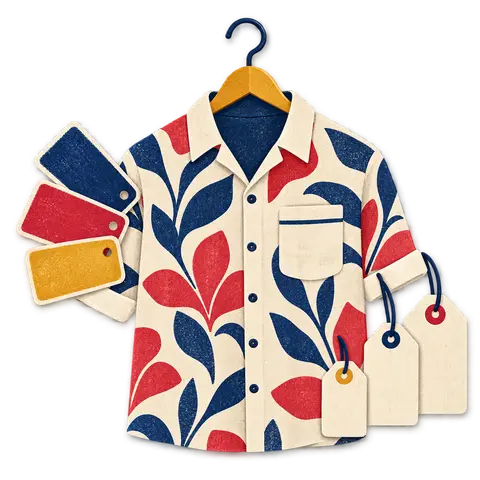
A dress that comes in five sizes and three colors is fifteen things to count, not one. BoutiquePOS keeps each of them separate so you always know whether the medium in sage is on the rack.
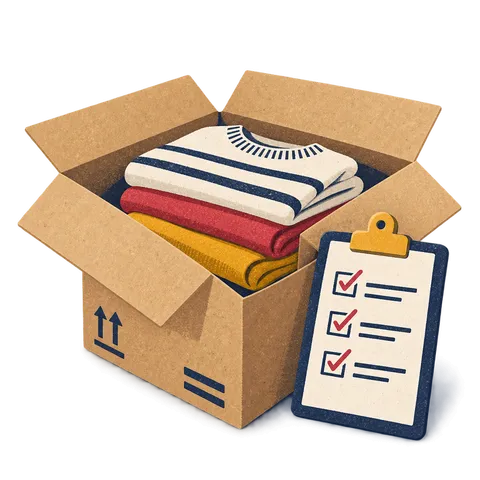
Buying is where boutique margins are made or lost. BoutiquePOS records what you ordered, what arrived and what you owe, size by size.
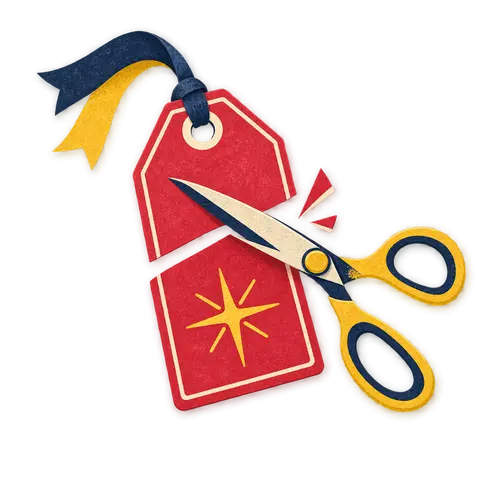
End-of-season markdowns, Black Friday, Eid sales and Dubai Shopping Festival offers all have a start and an end. BoutiquePOS schedules them so prices change on time and go back on time.
FAQ
Still unsure? Ask us on WhatsApp or the form, or search the help center.
Product barcodes can be Code 128, Code 39, EAN-13, EAN-8, UPC-A or UPC-E.
No. You can print sheet labels on a normal office printer. A thermal roll label printer is faster for big deliveries.
Yes. Labels can show the variation, so size and color appear alongside the name and price.
Yes. Enter the supplier's barcode on the product or variation and it will scan at the till.
Yes. Select the products from the delivery and set quantities to match what arrived.
You can set up label templates with your sheet or roll size and choose which details print. Label templates are included on Collection and above.
A scanner makes the till faster, and most USB or Bluetooth scanners that act like a keyboard work. You can also search products by name.
Yes. Pick the product and print one label whenever a tag is lost or damaged.
14-day free trial
Start free today, or book a demo and we set it up on your own products.
No card for the trialNo contractImport help is free
Adjust the site to suit you. Choices are saved on this device.
 BoutiquePOS
Recent
Popular